Overview
This guide explains how to register your website on Cloudflare and configure the Turnstile security widget. You'll learn to create a widget, obtain your Site and Secret keys, and integrate it into a ChronoForm. Once set up, Turnstile verifies user sessions and handles form submission verification through Cloudflare.

Using the new Cloudflare Turnstile security view is straightforward, but you need to register your website on Cloudflare first, we explain it all in steps.
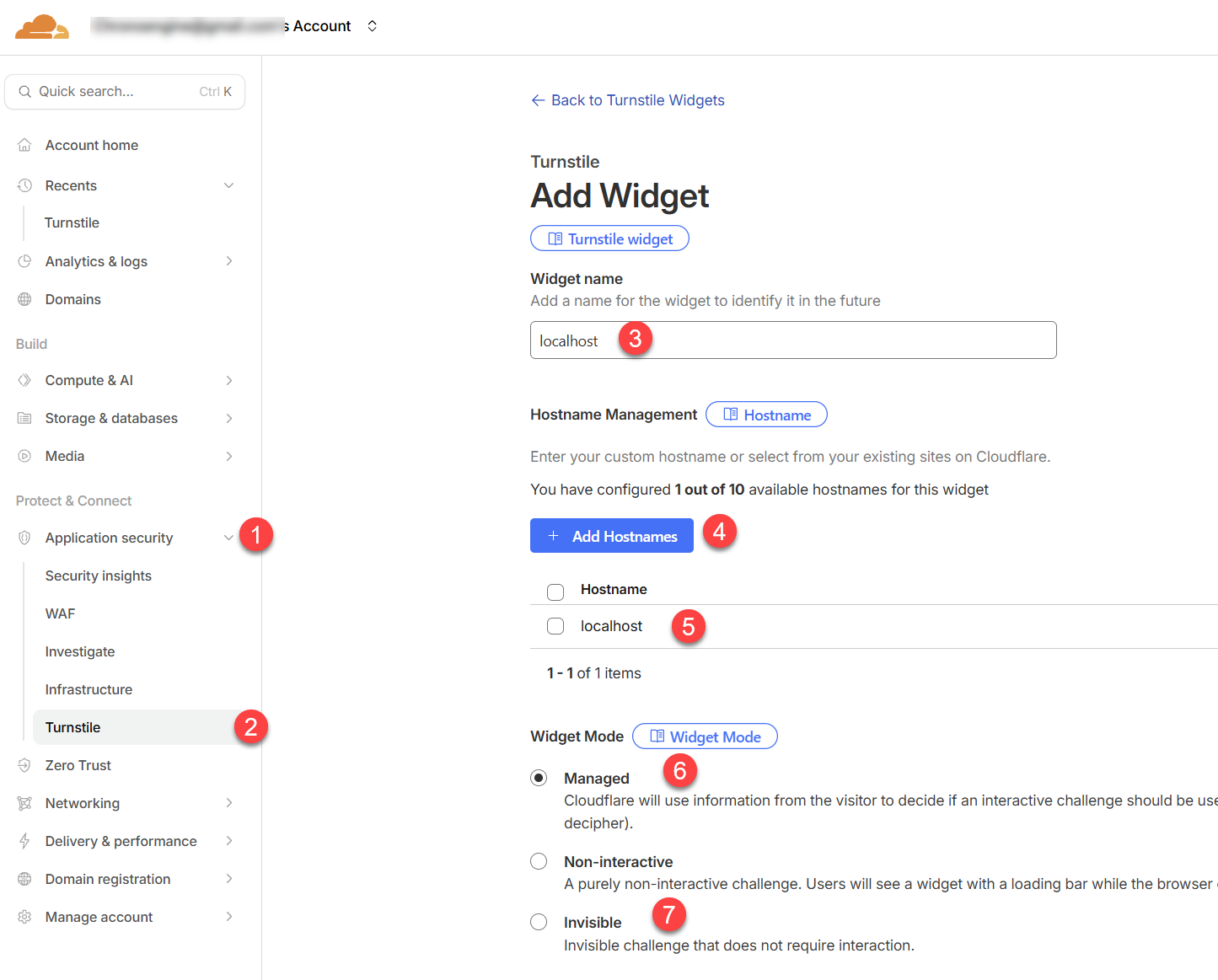
- Log in to your Cloudflare dashboard
- From the left side menu, open Go to Turnstile then Turnstile
- enter any widget name, then click Add Hostname and enter the domain name under which you will be using the form.
- Save the host to add it to the list of host names for this widget.
- Under Widget Mode, choose Managed
- You may choose Invisible instead if you need the widget to be invisible.
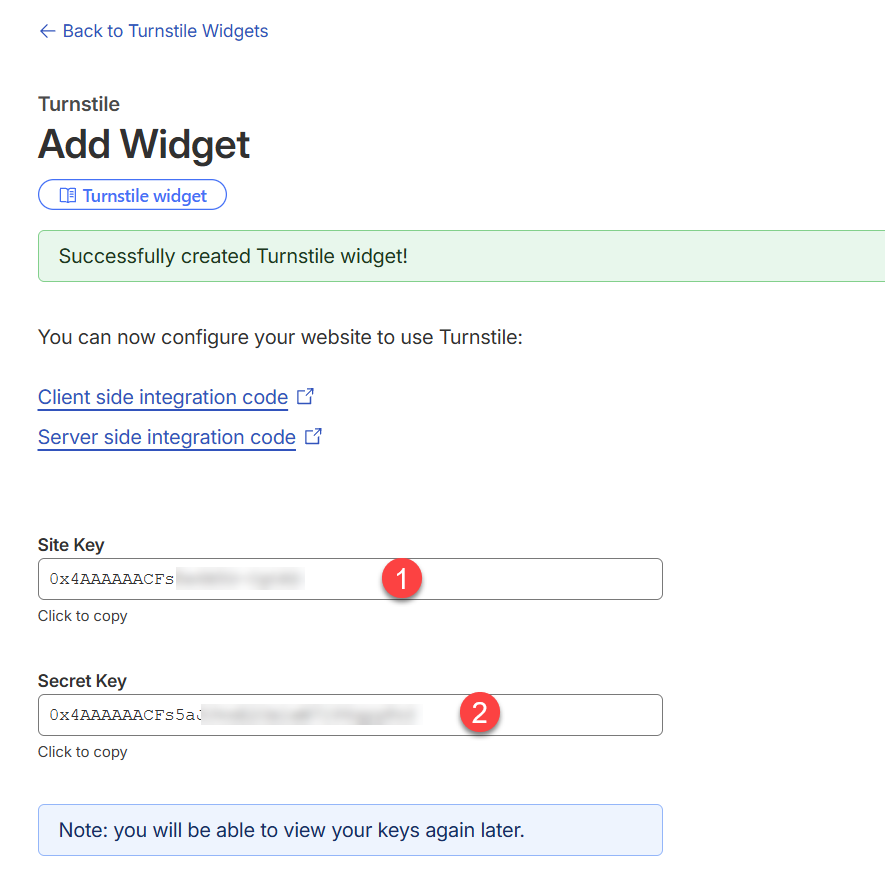
At the bottom of the page, click Create to finish creating the widget and get your Site Key and Secret Key as shown:
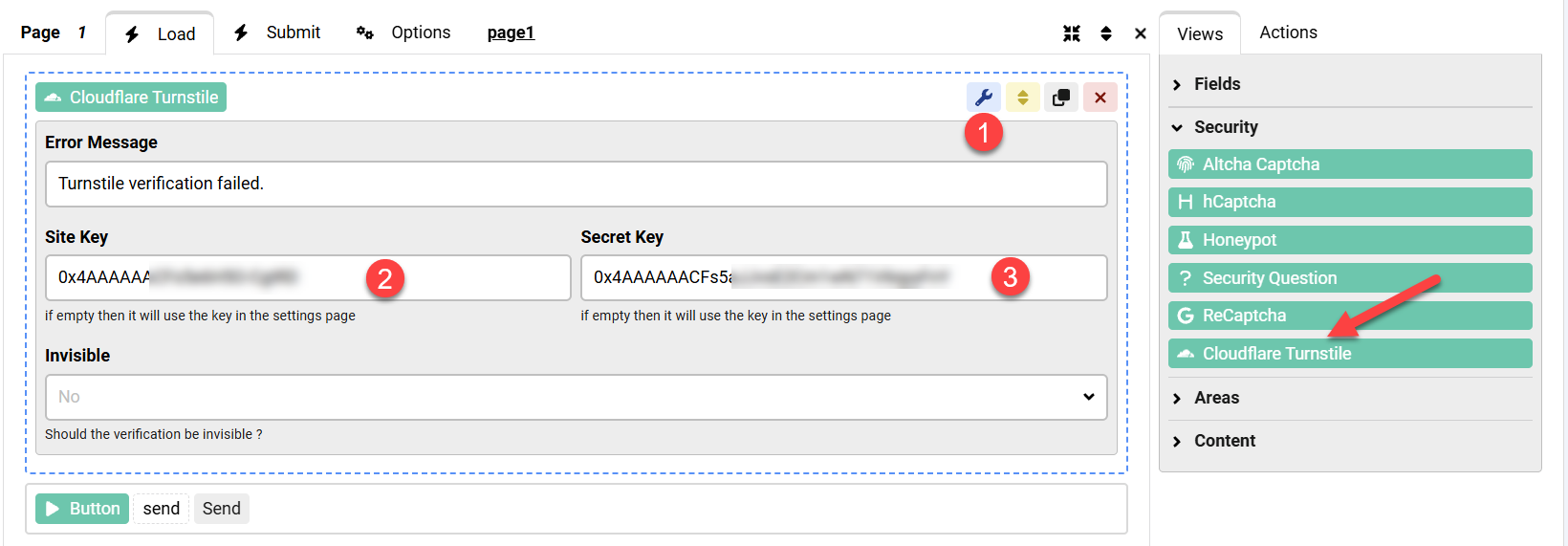
Now head to your ChronoForm and drag a Cloudflare Turnstile view from the Security group then open the view settings and paste your Site and Secret keys:
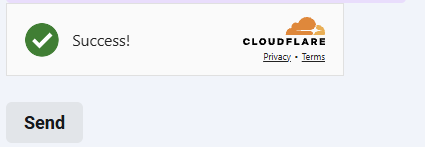
Save the form and open the form preview, after the page loads the turnstile will verify your session and display the success check:
Once the form is submitted, the Turnstile verification is sent to Cloudflare for further checking and if there are any errors the form will report them.


Comments