Published:
The ChronoForms DB Multi-Record Loader action is a very flexible tool. It allows you to extract data from tables in the database to use in your form or form submission; or to display with your form. A single DB Multi Record Loader can only access one table though and sometimes we need to get linked data from more than one table; for example, we might look up a list of Joomla articles and then want to show the author's name with the article. The #__content table has the author's User ID but not the name, that is in the #__users table.
To get a list with both the article title and the author's name we need to user two DB Multi Record Loader actions in the On Load event of our form. The last one will be the main one that will look up the article, the one before that will build the link with the #__users table to get the name.
This is not the 'obvious' order, and you can't add labels to these actions so please take care with this step.
Getting the User data
Open the first DB Multi Record Loader action.
On the General tab:
- Set the Table to #__users (where #_ with be the prefix for your site).
- Set the Model ID to User
- Add name in the Fields box
On the Advanced tab
- Set Load Data to No
- Set Enable Associations to No (it will be Yes on the main action)
- Set the JOIN rule to link the two tables. Note that this includes the Model IDs as prefixes to the created_by and id column names.
-
`Articles`.`created_by` = `User`.`id`
- Add Articles in the Associated Models box
Save and close the action.
Getting the Article data
Open the second DB Multi Record Loader action
On the General tab:
- Set the Table to #__content (where #_ with be the prefix for your site).
- Set the Model ID to Articles
- Add title in the Fields box
On the Advanced tab
- Set Load Data to Yes
- Set Enable Associations to Yes
- Leave the JOIN Rule empty
- Add User in the Associated Models box
- Set Group Model Data to No
On the Data Displayer tab
- Set Enable Data Displayer to Yes
- Add the columns and titles to display in the Display Fields box
-
title:Title,User.name:Author
Save and close the action.
Save the form and test. The image below shows an example of this listing.
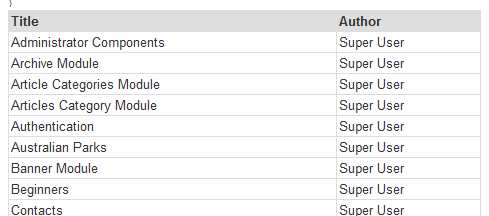
Note that the DB Multi Record Loader listing is independent of the Show HTML action. If you want to show the listing together with a form then you can place the Show HTML action either before or after the main DB Multi-Record Loader action to set the way they will display on the page.
Creating a flat table
This process creates a data array where the results of the joined table are contained as sub-arrays of the main table:
$form->data['Articles']
  'title' => 'Some title'
  'User' =>
    'Name' => 'Some name'
  'title' => 'Some other title'
  'User' =>
    'Name' => 'Some other name'
This is OK if you are using the data to display in ChronoForms, but if, for example, you want to export the data it would be more useful to have a 'flat' array. Adding code like this in a Custom Code action after the DB Multi-Record Loaders will do that:
<?php
foreach ( $form->data['Articles'] as $k => $v ) {
  foreach ( $v['User'] as $kk => $vv ) {
    $form->data['Articles'][$k][$kk] = $v['User'][$kk];
  }
  unset($form->data['Articles'][$k]['User']);
}
?>
Note that if you use this AND you want to display the data then you should leave out any Model IDs from the 'Display Fields' box on the Data Displayer tab.


Comments