ChronoForms v5 has its own built-in date-picker but sometimes that will not handle more complicated date-picker requirements. Here is a short case-study using the date-picker from the jQuery UI widget library.
The client for this form was handling a booking business. They were using ChronoForms v5 on Joomla! 3 and needed a pair of linked date-pickers to handle the beginning and end of the booking period; plus a display of three months for the second datepicker; plus a way to distinguish week-ends and weekdays; plus a way to handle certain dates that were 'not available' for one reason or another.
This could not easily be done with the ChronoForms datepicker so we looked for an alternative; the site was using Joomla! 3 so looking at jQuery was the place to start. There are many jQuery date-pickers including a good one that is available as a widget in the jQuery UI library. You can see demos here.
CFv4: I have also tested this FAQ with CFv4 on Joomla! 3 and it also appears to work OK there.
Loading the jQueryUI library
A version of the jQueryUI library is included in Joomla! 3 - unfortunately it doesn't include the datepicker widget. So the first problem is to get a library that does include the widget. As far as I can see there is no way of loading individual widgets from the library so we had to load an alternative library. The jQuery Easy plug-in makes this straightforward and does its best to remove any other jQuery libraries from the page to avoid duplication. On my test site it managed this well and removed both the default Joomla! and ChronoForms versions. I set the plug-in up to load jQuery v1.11.1 and jQuery UI 1.10.1
Add a basic datepicker
To add a basic datepicker I created a ChronoForm with a text input with the name and id set to 'dp_a'.
In a Load JS action in the form On Load event before the HTML (render form) action I added some very simple JavaScript.
$( '#dp_a' ).datepicker();
That works OK; but, as I use both jQuery and MooTools I prefer to be able to distinguish between them and avoid possible conflicts so I wrapped the code up as a jQuery function.
jQuery(document).ready(function (jQ) {
  jQ( '#dp_a' ).datepicker({
    minDate: 0
  });
});
The wrapper stops the code from running before the page is loaded so that the other elements are available; and it lets me replace the $ symbol with jQ for clarity.
I've also added a single option to the datepicker configuration with minDate: 0 which makes today the first date available for picking.
While there clearly could be more tweaking this meets the basic set-up for the first datepicker.
Add a more advanced datepicker
The second date-picker starts out in the same way. Add a text input to the ChronoForm, this time with the name and id set to 'dp_b'. And we add an option to display a three month calendar.
  jQ( '#dp_b' ).datepicker({
    numberOfMonths: 3,
  });
Note: the full list of Options and Methods available for the datepicker is in the docs here.
Linking the datepickers
The next step is to make a simple link between the two datepickers. For this example we'll disable the second date-picker until a start date is selected in the first one, then use that start date as the 'minDate' for the second one.
Disabling the second date-picker when the page loads is straightforward. This code will do it:
jQ( '#dp_b' ).datepicker('option', 'disabled', true);
To link them we can use the onSelect option of the first datepicker and write a function that will run when a start date is picked.
The function is like this where the parameter passed are 'start_date' the date that has been picked; and 'el' the page element that called the function (we don't need this here):
  function checkDate(start_date, el) {
    jQ( '#dp_b' ).datepicker('option', 'disabled', false);
    jQ( '#dp_b' ).datepicker('option', 'minDate', start_date);
  }
onSelect: checkDate
Putting it together
Adding all these code snippets together we have this:
jQuery(document).ready(function (jQ) {
  jQ( '#dp_a' ).datepicker({
    minDate: 0,
    onSelect: checkDate
  });

  function checkDate(start_date, el) {
    jQ( '#dp_b' ).datepicker('option', 'disabled', false);
    jQ( '#dp_b' ).datepicker('option', 'minDate', start_date);
  }

  jQ( '#dp_b' ).datepicker({
    numberOfMonths: 3,
  });
  jQ( '#dp_b' ).datepicker('option', 'disabled', true);
});
Showing weekends
.ui-datepicker-week-end a, .ui-datepicker-week-end span {
Blocking selected dates
The last requirement was the ability to block selected dates. Int this example we'll just use a fixed array of dates. In the actual form that array will be dynamically populated from a database query. I found the code to do this from this StackOverFlow answer. The code uses the beforeShowDay option in the datepicker to call a function that will check each date to see if it is available.
The array of dates used for testing is this:
var unavailableDates = ["9-8-2014", "14-8-2014", "15-8-2014"];
The function to do the test is this:
  function unavailable(date) {
    dmy = date.getDate() + "-" + (date.getMonth() + 1) + "-" + date.getFullYear();
    if (jQ.inArray(dmy, unavailableDates) == -1) {
       return [true, ''];
    } else {
      return [false, '', 'Unavailable'];
    }
  }
And, lastly the option to set this up is:
beforeShowDay: unavailable
The final script
Here is the final version of the test script:
jQuery(document).ready(function (jQ) {
  jQ( '#dp_a' ).datepicker({
    minDate: 0,
    onSelect: checkDate
  });

  function checkDate(start_date, el) {
    jQ( '#dp_b' ).datepicker('option', 'disabled', false);
    jQ( '#dp_b' ).datepicker('option', 'minDate', start_date);
  }

  // note the following line would be set dynamically in a real application
  var unavailableDates = ['9-8-2014', '14-8-2014', '15-8-2014'];

  jQ( '#dp_b' ).datepicker({
    numberOfMonths: 3,
    minDate: +10,
    maxDate: '+1M +10D',
    beforeShowDay: unavailable
  });

  jQ( '#dp_b' ).datepicker('option', 'disabled', true);

  function unavailable(date) {
    dmy = date.getDate() + "-" + (date.getMonth() + 1) + "-" + date.getFullYear();
    if (jQ.inArray(dmy, unavailableDates) == -1) {
       return [true, ''];
    } else {
      return [false, '', 'Unavailable'];
    }
  }
});
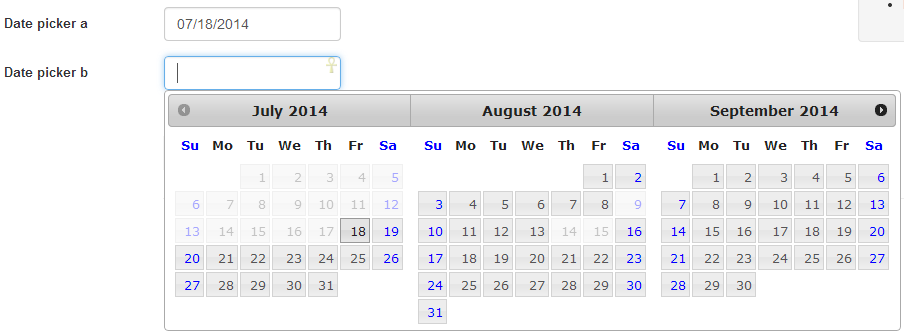


Comments